1. Introduction
The demand for migrating our On-Prem customers to SaaS is on the rise. It is of utmost importance to know the level of effort needed to get the customer migrated. Each customer’s environment is different.
In this article, we will be talking about migrating the VPP configurations from Global to the Parent OG. This covers the remediation of one of the configurations that reside at Global. Similarly, different remediation steps should be taken for different configurations at Global. Please involve the VMware Professional Services Team to have a look at the environment and depending on the discovery sessions, get a Remediation Plan created, if required.
The golden rule to getting migrated successfully is to make sure none of the configurations reside at Global. Once you move to SaaS you will lose access to the Global OG thereby losing the control over the configuration. Also, this doesn’t fall under SaaS recommended practices. Any configuration like the Directory Services, APNS, EMM, Profiles, Compliance policies etc can’t stay at Global. A remediation Plan must be put in place to align these to the Parent Organization Group.
If you happen to have all the configurations at Global and at the same time have multiple customer type Organization Groups, then it becomes a tedious task to identify which customer type OG will be the parent and how easily should we move all the Configurations from the other customer type OG to the identified Parent OG. Also, please do keep in mind that SaaS only allows 1 Customer Type Organization Group to be migrated. All the configurations must reside at the identified parent Organization Group.
2. Process
Migrating the VPP licenses is a 4-step process.
- Revoke the VPP License
- Migrate the s-token from Global to the target Parent OG
- Move the devices from Global to the target OG (Please keep in mind that this action should be taken as deemed appropriate in the migration/remediation plan)
- Run an API call to sync the devices. This must be done to make sure the licenses are getting associated to the devices.
a. Revoking VPP License
Note: Assuming the readers have a fair idea on how to use the Postman app
- In order to revoke the licenses, you will have to first get the s-token from the Apple portal after clearing it from Global.
- Next, run a database query to get the VPP License IDs. The output should look something like this. Save this file as you might need it.
–Fetch License info for a given VPP Token
SELECT vl.*
FROM deviceapplication.vpplicense vl (NOLOCK)
JOIN deviceApplication.VppAccount va (NOLOCK) ON vl.VppAccountID = va.VppAccountID
WHERE va.LocationGroupID = 7
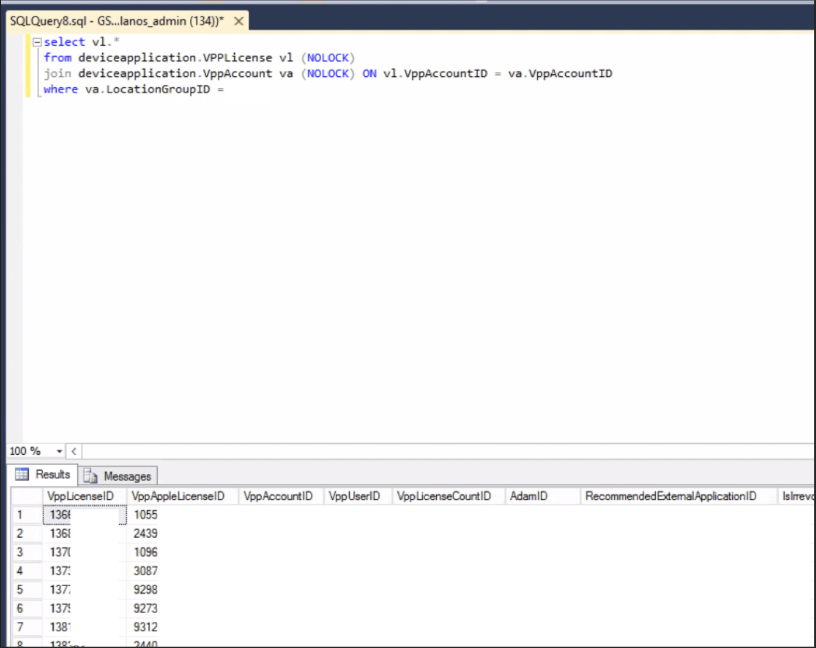
Note: This is an edited screenshot. You should have a full output after you run the query.
- Open Postman and create the API query as shown below. You must use the right HTTP method to get the output. POST in this case
- Apple Endpoint: https://vpp.itunes.apple.com/mdm/disassociateVPPLicenseSrv
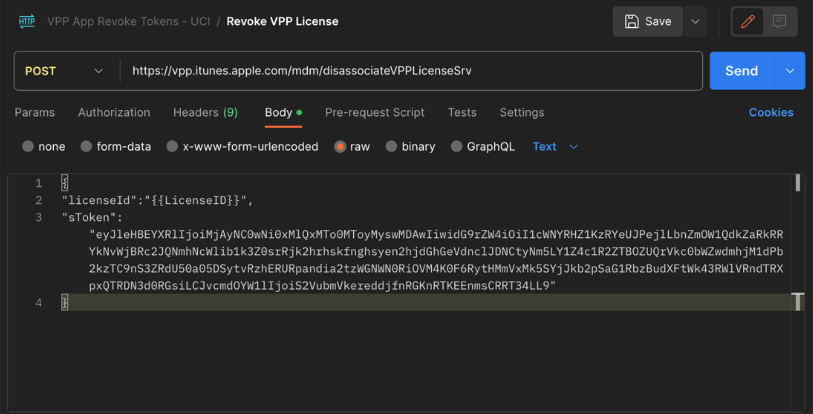
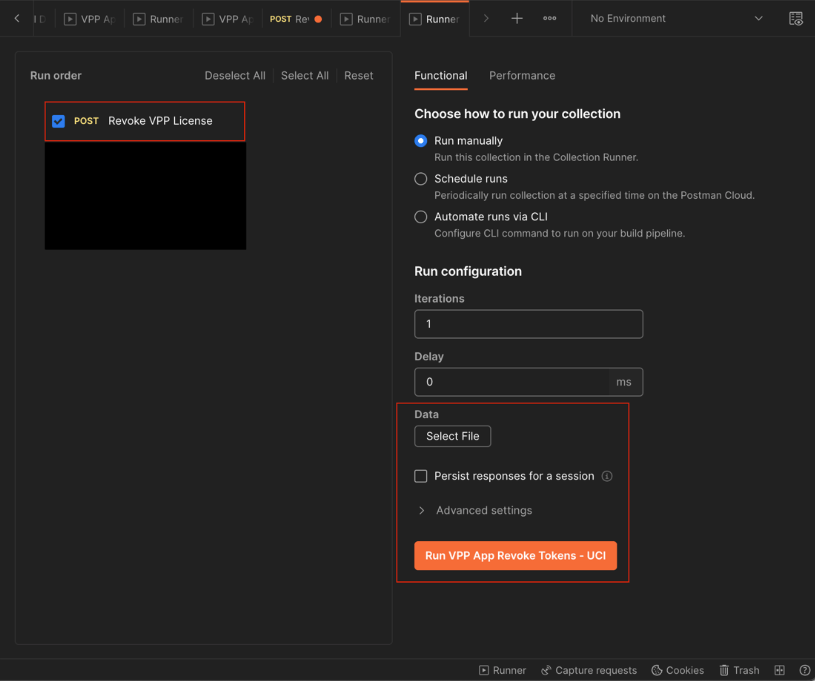
- Open the runner tool and upload the file created in step no 2. Run the query. The output should look like this.
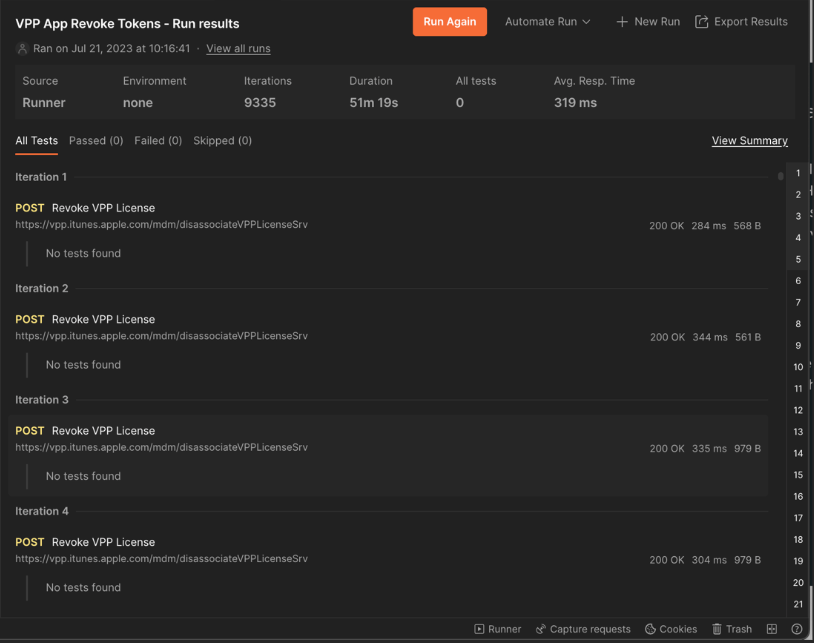
- At this point the VPP License should be revoked. Please wait for some time and then sync the assets in the UEM Console
b. Migrate the s-token to the Parent Customer Type OG
- Add the s-token to the Parent Organization Group. For more information follow the official VPP document
- Wait for a couple of minutes and sync the assets.
- Add the assignments back. At this point your Public apps should still be added as a fallback for these devices until we are sure that the devices have redeemed the licenses. This will happen only after the device syncs
c. Move the Devices from the Global to the target Parent OG
Ensure you have moved all the devices to the Parent Organization Group using either API or the Console UI
d. API Call to sync the devices
Use the On-Premise API Endpoint to validate the Base URL
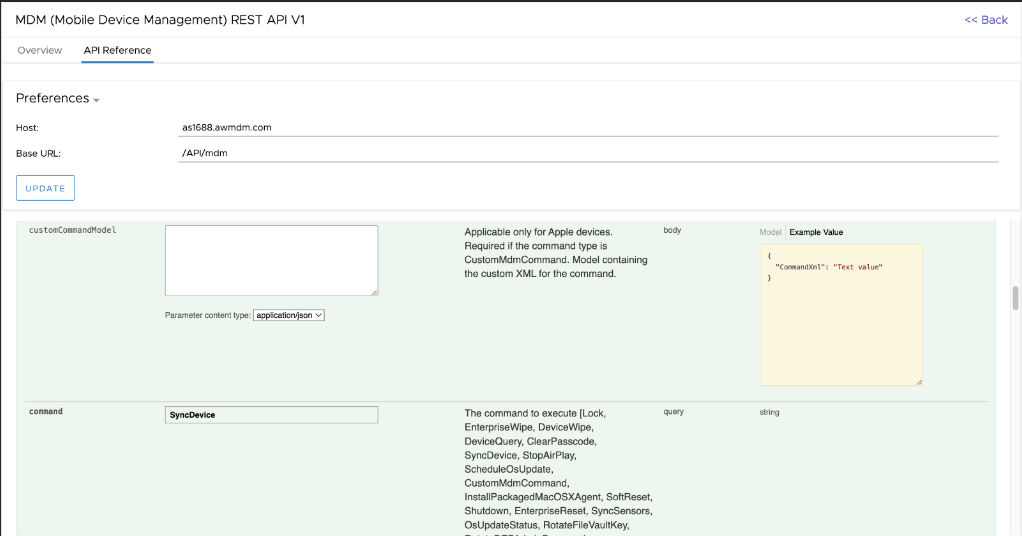
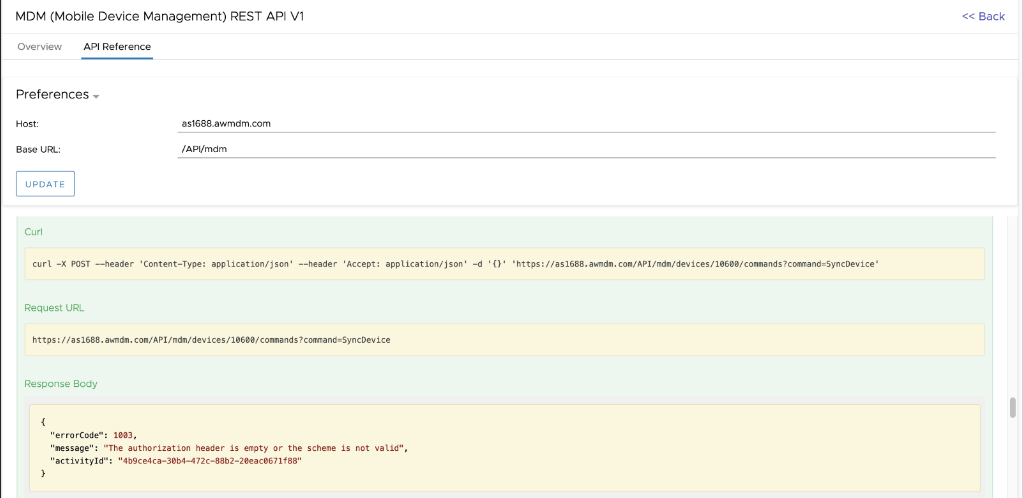
- Next, you would have to get all the device IDs to push a sync command using API. This can be done by using an API query or run a report from the Console for the respective Organization Groups.t
- Add all the group ID in the query for all the Organization Groups where you have devices
- If the VPP assignment is auto but has a public on-demand assignment, then app sync will not automatically associate back licenses, a device sync is needed
- Prepare the Postman App to make a call
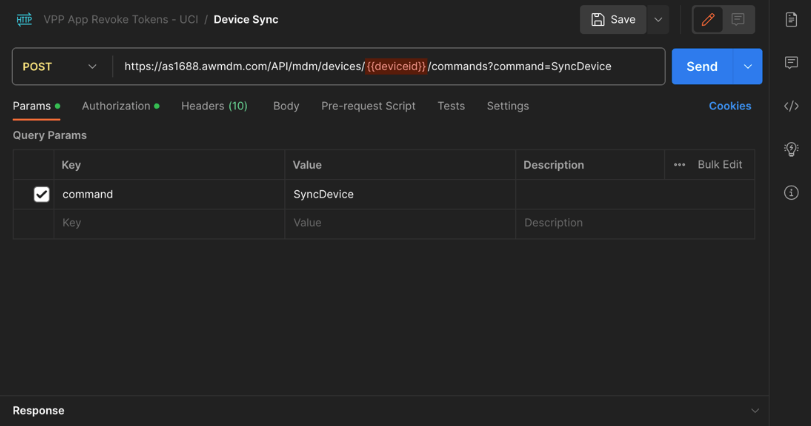
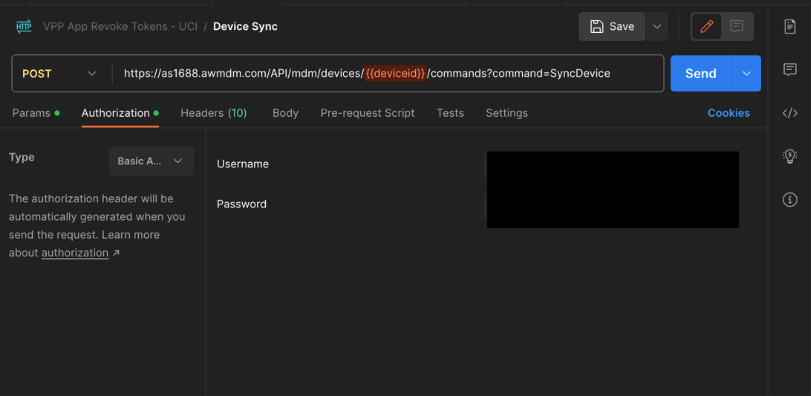
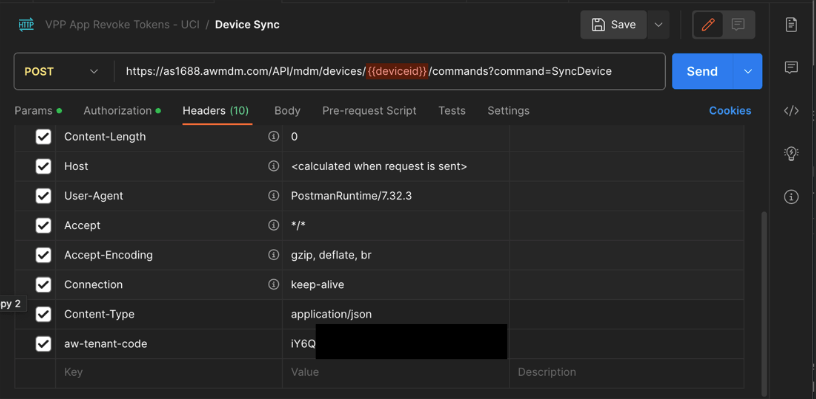
Use the runner and upload the file with the device IDs
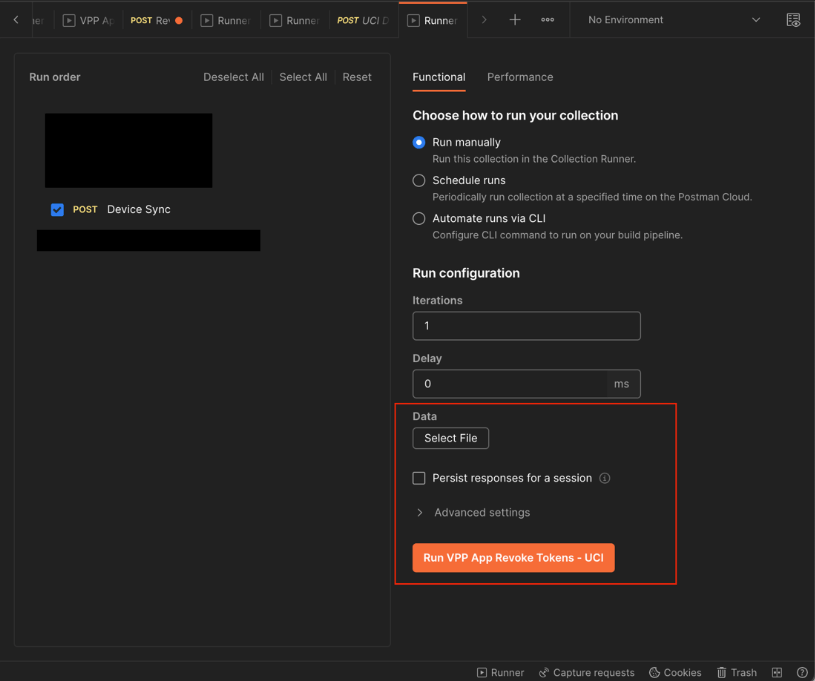
Execute the query.
At this point the VPP licenses should get associated to the devices
3. Conclusion
Hopefully this article serves as a starting point to assist you with the VPP revocation during a migration or for any other use case. We must follow similar steps for other configurations ensure none of them reside at Global.
If an environment is remediation heavy, it takes time to make is SaaS ready and to ensure none of the devices in the production environment are hampered in any way.
Please follow official VMware documents for updated information.
 Navjyot Chaney's Blog