1. Introduction
I recently upgraded an on-premise UEM environment from version 23.10 to 24.10. In this blog, I’ll share the key considerations to keep in mind before starting the upgrade, along with potential issues you may encounter during or after the process.
It’s worth noting that version 24.10 is quite stable, and all the latest patches include important fixes. Be sure to review the official release notes here
2. Upgrade Plan
Before starting any upgrade, it’s essential to create a well-defined upgrade plan. All configurations that functioned prior to the upgrade should continue to work post upgrade. Below is a snippet from the upgrade checklist we use—you can create a similar checklist covering key configurations and components such as Directory Services, SEG, AWCM testing, ACC, SMTP, Syslog, API, and more.

3. Process
As long as you follow the process correctly, you should not run into major challenges. However, this also depends on the UEM environment as well.
Note – We are specifically talking about the 24.10.689.24 version
The right process is to –
- Take a Full Database backup
- Take Server snapshots
- Stop all the services and disable IIS on the application servers
- You can use this command – stop-service airwatch*
- Run the DB upgrade form the Console or the Device Services Server
- Ensure the DB is upgraded
- Run the application server upgrade on both the Console and the Device Services Server
4. Potential Issues
Exchange Online Management Module
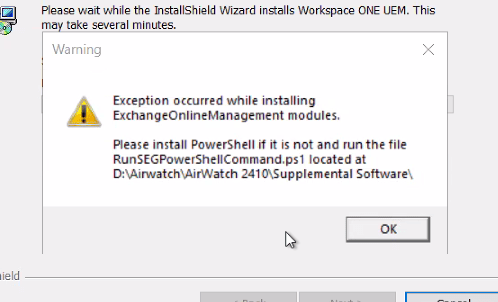
- Issue: You may encounter an error with PowerShell script execution while upgrading to version 24.10.
- Resolution: Navigate to the specified location and run the provided PowerShell script. This typically resolves the issue.
AWCM Test Connection Failing
- Issue: In my case, the AWCM test connection failed after the upgrade. If you encounter the same error, try to
- Re-run the Secure Channel Certificate (refer to official Omnissa documentation for guidance).
- In a browser, check https://{awcmurl}:2001/AWCM/status to confirm you’ve received an Alive or an OK status.
- If everything appears to be working but AWCM still fails, try reinstalling it.
- Ensure the correct SSL certificate is in place before reinstalling. This should also help ACC pass the test connection.
Page not Found error after upgrade to 2410
- Issue: Some Admin Console pages may fail to load properly after the upgrade.
- Issue can be identified by looking at the UEM console logs. It would show:
System.UriFormatException: Invalid URI: The URI scheme is not valid. - Workaround:
- Omnissa team has developed an agnostic script that resolves the issue.
- Before upgrading, raise a proactive support ticket so you can quickly obtain the script if needed.
5. Conclusion
A newer patch—24.10 Patch 26—is expected to include a permanent fix for this problem, so the agnostic script may no longer be necessary. However, it’s still best practice to raise a proactive SR informing the support team of your upgrade plans. After running the full installer, immediately apply the latest patch installer to ensure all fixes are in place.
Hope this helps!
 Navjyot Chaney's Blog